What You Will Learn
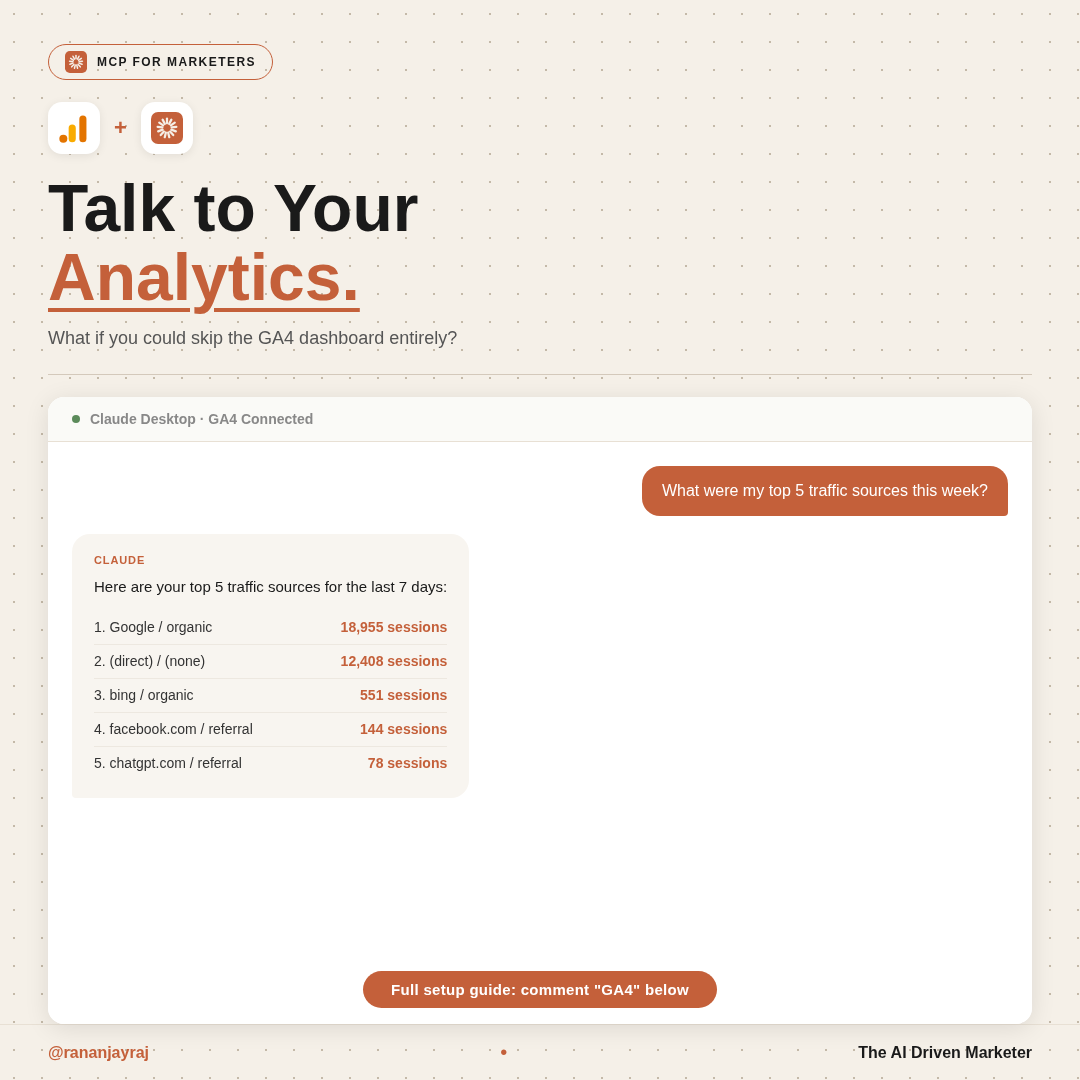
This guide walks you through connecting your Google Analytics 4 data directly to Claude. Once connected, you can ask Claude questions about your website traffic, top pages, traffic sources, device breakdowns, and more, all in plain English.
Setup takes about 10-15 minutes. Most of that time is the one-time Google Cloud Console configuration.
What is MCP?
MCP stands for Model Context Protocol. Think of it as a bridge that lets Claude talk directly to external tools and data sources like Google Analytics, Google Ads, Slack, Notion, and more.
When you connect GA4 via MCP, Claude can pull your real analytics data and answer questions about it in real time. No need to open GA4 dashboards, set date ranges, apply filters, or export CSVs.
Prerequisites
Before you start, make sure you have:
- [ ] Claude Desktop app installed on your Mac or Windows computer
- [ ] A Google account with access to at least one GA4 property
- [ ] Node.js installed (version 20 or higher)
How to check if Node.js is installed:
Open Terminal (Mac) or Command Prompt (Windows) and type:
node --version
If you see a version number like v20.x.x or higher, you are good. If not, download it from nodejs.org (choose the LTS version).
Part 1: Google Cloud Console Setup
This is the one-time setup that gives Claude permission to read your analytics data. You will create a "service account," which is like a special login just for Claude.
Step 1: Create a Google Cloud Project
- Go to console.cloud.google.com
- Sign in with the same Google account that has access to your GA4 property
- Click the project dropdown at the top of the page (it may say "Select a project" or show an existing project name)
- Click New Project
- Name it something like
GA4-Claude-MCP - Click Create
- Make sure your new project is selected in the dropdown
Step 2: Enable the Google Analytics Data API
- In the search bar at the top, type Google Analytics Data API
- Click on the result that says "Google Analytics Data API"
- Click the blue Enable button
- Wait for it to activate (takes a few seconds)
This API is what allows external tools to read your GA4 data. Without it, the connection will not work.
Step 3: Create a Service Account
- In the left sidebar, go to IAM & Admin then click Service Accounts (or search "Service Accounts" in the top search bar)
- Click + Create Service Account at the top
- Fill in the details:
- Service account name:
claude-ga4-reader - Description: "Read-only access to GA4 data for Claude MCP"
- Service account name:
- Click Create and Continue
- Skip the optional "Grant this service account access" step. Click Continue
- Skip the optional "Grant users access" step. Click Done
Step 4: Download the JSON Key File
- You will see your new service account in the list. Click on its email address (it looks like
claude-ga4-reader@your-project.iam.gserviceaccount.com) - Go to the Keys tab
- Click Add Key then Create New Key
- Select JSON as the format
- Click Create
A JSON file will download to your computer automatically. This file contains the credentials Claude needs.
Important: Move this file somewhere safe and permanent. For example:
- Mac: Create a folder at
~/Documents/claude-mcp/and move the file there - Windows: Create a folder at
C:\\Users\\YourName\\Documents\\claude-mcp\\and move the file there
Rename the file to service-account.json for simplicity.
Security note: Never share this file publicly or commit it to GitHub. It grants read access to your analytics data.
Step 5: Get Your GA4 Property ID
- Go to analytics.google.com
- Click Admin (gear icon, bottom left)
- Under the Property column, click Property Settings
- Copy the Property ID (a numeric value like
512######)
Save this number. You will need it in the next section.
Step 6: Grant the Service Account Access to GA4
This is the step most people forget, and it is the #1 reason the connection fails.
- Still in GA4 Admin, click Property Access Management (under the Property column)
- Click the + button (top right) to add a user
- Paste the service account email address (the one that looks like
claude-ga4-reader@your-project.iam.gserviceaccount.com) - Set the role to Viewer
- Click Add
Without this step, the service account exists but has zero permission to see your data.
Part 2: Connect to Claude Desktop
Now that Google Cloud is configured, let's connect it to Claude.
Step 1: Open Claude Desktop Settings
- Open the Claude Desktop app
- Click on Settings (gear icon)
- Go to Developer
- Click Edit Config
This opens a JSON configuration file.
Step 2: Open Your JSON Key File
Open the service-account.json file you downloaded earlier in any text editor. You will need two values from it:
- client_email (looks like:
claude-ga4-reader@your-project.iam.gserviceaccount.com) - private_key (a very long string starting with
-----BEGIN PRIVATE KEY-----)
Step 3: Paste the MCP Configuration
Replace the contents of the Claude config file with this (or add inside your existing mcpServers block if you already have other servers):
{
  "mcpServers": {
    "google-analytics": {
      "command": "npx",
      "args": ["-y", "mcp-server-google-analytics"],
      "env": {
        "GOOGLE_CLIENT_EMAIL": "your-service-account-email@project.iam.gserviceaccount.com",
        "GOOGLE_PRIVATE_KEY": "your-private-key-from-json-file",
        "GA_PROPERTY_ID": "your-ga4-property-id"
      }
    }
  }
}
Replace the three placeholder values:
- GOOGLE_CLIENT_EMAIL with the
client_emailvalue from your JSON file - GOOGLE_PRIVATE_KEY with the entire
private_keyvalue from your JSON file (including the-----BEGIN PRIVATE KEY-----and-----END PRIVATE KEY-----parts) - GA_PROPERTY_ID with your numeric property ID from Step 5 above
Step 4: Save and Restart Claude
- Save the config file (Cmd+S on Mac, Ctrl+S on Windows)
- Quit Claude Desktop completely:
- Mac: Cmd+Q (do not just close the window)
- Windows: Right-click the taskbar icon and close
- Reopen Claude Desktop
Step 5: Verify the Connection
Go to Settings then Developer in Claude Desktop. You should see:
google-analytics with status Running
If you see an error, jump to the Troubleshooting section below.
Part 3: Start Asking Questions
Once connected, you can ask Claude anything about your GA4 data. Here are some examples to try right away:
Test your connection:
Can you check if my Google Analytics connection is working?
Get a quick overview:
How many sessions and active users did I get yesterday?
If Claude returns real numbers from your GA4 property, everything is working.
15 Ready-to-Use Prompts
Copy and paste these directly into Claude.
Traffic Overview
- "How many sessions and active users did I get yesterday?"
- "Show me daily sessions for the last 30 days"
- "What is my overall bounce rate and engagement rate this week?"
Traffic Sources
- "What are my top 10 traffic sources by sessions for the last 7 days?"
- "How much traffic am I getting from organic search vs direct vs social?"
- "Which traffic source has the highest engagement rate?"
Top Pages
- "What are my top 20 most visited pages this month?"
- "Which pages have the highest bounce rate? Show me the bottom performers."
- "Show me page views for my blog posts only (filter by /blog/ in the URL)"
Device and Location
- "Break down my traffic by device type: mobile, desktop, and tablet"
- "What are my top 10 countries by sessions this month?"
- "Show me traffic from India specifically, broken down by city"
Comparisons and Trends
- "Compare this week's sessions to last week. Am I growing or declining?"
- "What day of the week gets the most traffic? Show me the last 4 weeks by day."
- "Which new pages got the most traffic in the last 7 days?"
Pro tip: You can combine and layer these. Try: "Show me traffic sources for the last 30 days, and highlight which ones have an engagement rate above 50%." Claude will pull the data and do the analysis for you.
Where This Works
Once configured, the GA4 MCP connection works across:
- Claude Desktop (chat interface for everyday use)
- Claude Code (command line for developers and power users)
- Claude Cowork (desktop automation for non-technical teams)
The same config file powers all three. Set it up once, use it everywhere.
Troubleshooting
Problem | Solution |
|---|---|
Status shows "Error" | Quit Claude completely (Cmd+Q), wait 5 seconds, reopen |
"npx not found" error | Install Node.js from nodejs.org (LTS version) and restart Claude |
"Permission denied" or empty data | You forgot Step 6. Go to GA4 Admin and add the service account email as a Viewer |
"API not enabled" error | Go back to Google Cloud Console and make sure the Google Analytics Data API is enabled |
Wrong data or wrong property | Double-check your GA_PROPERTY_ID. It should be numeric only (like 123456789) |
Private key format error | Make sure the entire private key string is on one line in the config, including the BEGIN and END markers |
Config file syntax error | Paste your config into jsonlint.com to check for missing commas or brackets |
What Can You NOT Do?
The MCP connection is read-only. You can ask Claude to analyze, compare, and explain your GA4 data. You cannot use it to:
- Change GA4 settings or configurations
- Create or modify events, conversions, or audiences
- Edit user permissions
- Delete any data
Your analytics setup stays safe. Claude can only read and report.
Quick Alternative: Stape Cloud Method
If you want to skip the Google Cloud Console setup entirely, there is a cloud-hosted alternative by Stape. Instead of creating a service account, you authenticate directly with your Google account.
Config:
{
  "mcpServers": {
    "ga4-mcp-server": {
      "command": "npx",
      "args": ["-y", "mcp-remote@0.1.30", "<https://mcp-ga.stape.ai/mcp>"]
    }
  }
}
After pasting this and restarting Claude, a browser window opens where you sign in with Google. The tradeoff: your data routes through Stape's servers (a third-party service), and there may be usage limits.
Next Steps
Once you are comfortable with basic queries, try these advanced use cases:
- Ask Claude to build a weekly analytics summary and format it as a report in .PPTX format.
- Use Claude to spot anomalies by asking "Were there any unusual traffic spikes or drops in the last 14 days?"
- Combine GA4 data with other MCP connections (like Google Ads or Search Console) for a full marketing performance review
- Set up a scheduled task in Cowork to pull your analytics summary every Monday morning
Created by @rananjayraj | The AI Driven Marketer