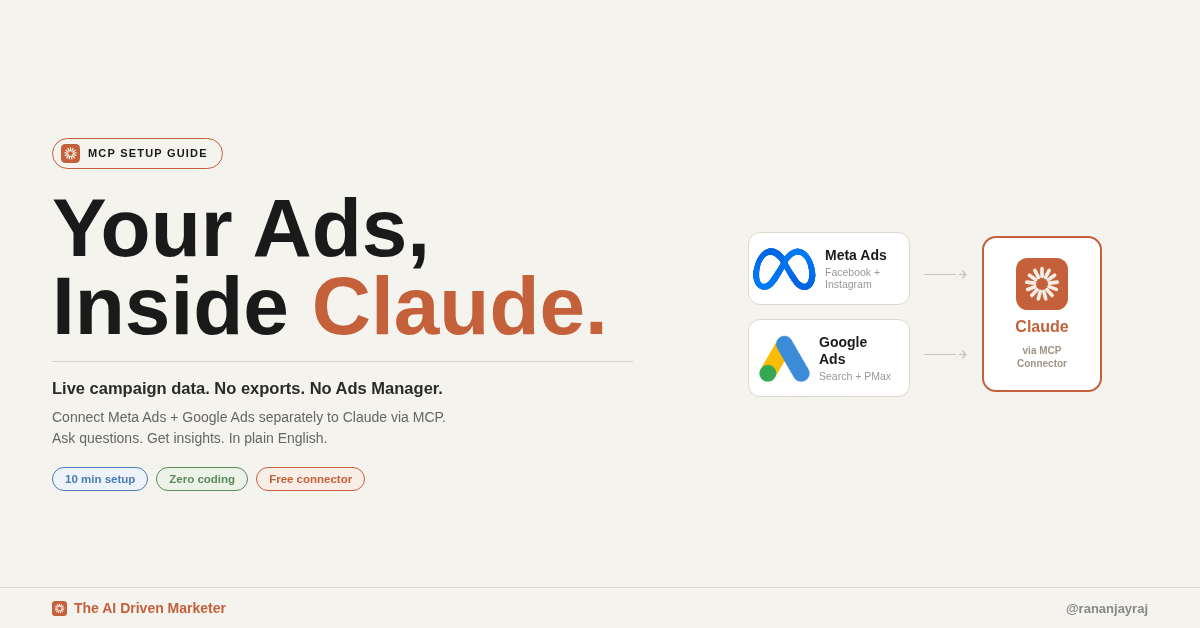
💡 What this guide does: Shows you how to give Claude direct, live access to your Meta Ads and Google Ads accounts so you can ask it questions, get performance insights, and run analysis without ever opening a dashboard or exporting a spreadsheet.Rananjay
Time to complete: 10 minutes Technical skill required: None Cost: Free (requires an active Claude Pro or Max subscription)
Table of Contents
- What is MCP? (Plain English Explainer)
- Why Pipeboard?
- Before You Start
- Step 1: Create Your Pipeboard Account
- Step 2: Connect Your Ad Accounts
- Step 3A: Setup for Claude Chat (claude.ai)
- Step 3B: Setup for Claude Cowork
- Step 3C: Setup for Claude Code
- What to Ask Claude (20+ Example Prompts)
- Troubleshooting
- What's Next
What is MCP?
MCP stands for Model Context Protocol. It is a standard that lets Claude connect directly to external tools and data sources, in real-time, during a conversation.
Think of it like this:
Without MCP, Claude only knows what you paste into the chat. If you want ad performance data, you have to export it yourself and drop it in.
With MCP, Claude has a live connection to your ad accounts. It can pull your campaign data, ad set metrics, spend summaries, and more at any moment, just by being asked.
🔒 Security note: MCP connections use OAuth 2.0 authentication, the same standard used by "Sign in with Google." Your ad account credentials are never stored by Claude or any third party. You can revoke access at any time.
Why Pipeboard?
There are several MCP servers built for ad platforms. Pipeboard is the recommended option for this guide because:
Feature | Pipeboard |
|---|---|
Platforms supported | Meta Ads, Google Ads, TikTok Ads |
Installation required | No (remote MCP, runs in the cloud) |
Coding required | No |
Authentication method | OAuth (click to connect) |
Works with Claude Chat | Yes (all plans) |
Works with Claude Cowork | Yes |
Works with Claude Code | Yes |
Free to use | Yes |
Pipeboard is source-available and maintained by the pipeboard-co team on GitHub.
Before You Start
Make sure you have the following before beginning:
- A Claude account on any plan. Free plan users can add 1 custom connector. Pro, Max, Team, and Enterprise users have no limit.
- Admin access to your Meta Ads account (or a test account)
- Admin access to your Google Ads account (or a test account)
- A free Pipeboard account (you will create this in Step 1)
⚠️ Note: If you are setting this up for a client account, make sure you have the required permissions on that ad account before connecting. Pipeboard connects at the account level using your login credentials.
Step 1: Create Your Pipeboard Account
- Go to pipeboard.co
- Click Sign Up and create a free account
- Verify your email address
- You will land on your Pipeboard dashboard
That's it for Step 1. Your Pipeboard account is now active.
Step 2: Connect Your Ad Accounts
Connect Meta Ads
- From your Pipeboard dashboard, click Connect Meta Ads
- You will be redirected to a Meta/Facebook login screen
- Log in with the Facebook account that has access to your Meta Ads account
- Grant the requested permissions (these allow Pipeboard to read your campaign data)
- You will be redirected back to Pipeboard with your Meta Ads account now connected
✅ You should see your Meta Ads account name appear in the Pipeboard dashboard once connected.
Connect Google Ads
- From your Pipeboard dashboard, click Connect Google Ads
- You will be redirected to a Google login screen
- Log in with the Google account that has access to your Google Ads account
- Grant the requested permissions
- You will be redirected back to Pipeboard with your Google Ads account now connected
✅ You should see your Google Ads account name appear in the Pipeboard dashboard once connected.
Step 3A: Setup for Claude Chat (claude.ai)
- Open claude.ai and log in
- Click your profile icon in the top right corner
- Go to Settings
- Click on Connectors in the left sidebar (direct link: claude.ai/settings/connectors)
- Click Add custom connector
- Enter a name (e.g., "Meta Ads") and paste the MCP URL. Add both connectors one at a time:
For Meta Ads:
https://meta-ads.mcp.pipeboard.co/For Google Ads:
https://google-ads.mcp.pipeboard.co/- When prompted to authenticate, follow the OAuth flow to link your Pipeboard account
- Once added, both connectors will appear as active in your Connectors settings
How to activate connectors in a conversation: Connectors are not automatically on in every chat. To use them, click the "+" button at the bottom left of any conversation, select "Connectors", and toggle on the ones you want active for that session.
💡 How to verify it's working: Start a new Claude conversation, enable both connectors via the "+" button, then type: "List my Meta Ads campaigns." Claude should return your live campaign list within a few seconds.
Step 3B: Setup for Claude Cowork
Cowork uses the same Connectors system as Claude Chat. If you already completed Step 3A, your connectors are already available in Cowork. No additional setup is required.
To activate them inside a Cowork session, click the "+" button at the bottom of your chat, select Connectors, and toggle on Meta Ads and Google Ads for that session.
💡 If you skipped Step 3A and are setting this up from Cowork only, you can also add custom connectors directly by navigating to Settings > Connectors from within the Cowork interface and following the same steps as Step 3A.
Once connected, you can use Claude's ad account access directly inside any Cowork session, alongside your files, documents, and other connected tools.
Step 3C: Setup for Claude Code
Requirement: Claude Code installed (run claude --version in your terminal to check)Open your terminal and run the following commands:
Add Meta Ads MCP:
bash
claude mcp add meta-ads https://meta-ads.mcp.pipeboard.co/Add Google Ads MCP:
bash
claude mcp add google-ads https://google-ads.mcp.pipeboard.co/💡 If authentication is required: After running the add command, Claude Code may prompt you to complete an OAuth flow in your browser. Follow the prompt and log in with your Pipeboard account credentials to authorize the connection.Verify the connection:
bash
claude mcp listYou should see both meta-ads and google-ads listed as active MCP servers.
From here, you can run ad analysis directly from your terminal or use it inside Claude Code agent sessions.
What to Ask Claude (20+ Example Prompts)
Once your MCP connections are live, here are prompts you can copy-paste straight into Claude.
Performance Overview
List all my active Meta Ads campaigns and their spend from the last 7 days.Which Google Ads campaign had the highest click-through rate last month?Give me a performance summary across all my Meta Ads campaigns for the past 30 days.What is my total ad spend across Meta Ads and Google Ads this month?Budget & Waste Analysis
Which Meta Ads ad sets are spending budget but generating zero conversions in the last 14 days?Are there any Google Ads campaigns that have exceeded their daily budget more than 3 times this week?Which Meta Ads audiences have the highest cost per result this month?Creative & Audience Insights
Which ad creative in my Meta Ads account has the highest engagement rate this month?Show me the frequency and CTR for all active Meta Ads in the last 7 days. Flag any creatives with frequency above 3.Which Google Ads ad groups have the most wasted spend from broad match keywords?Reporting & Summaries
Write a weekly performance summary for my Meta Ads account that I can send to a client. Keep it concise and highlight wins and areas to watch.Compare my Google Ads performance from this month vs last month. What changed?Create a simple table showing campaign name, spend, clicks, conversions, and CPA for all my Meta Ads campaigns from last week.Optimization Recommendations
Based on my current Meta Ads data, which 3 ad sets should I scale and which 3 should I pause?Look at my Google Ads search campaigns and suggest 5 negative keywords I should add based on recent search term data.Which Meta Ads audience segment is delivering the best ROAS? What does that tell me about who I should target more?Quick Spot Checks
Is any campaign in my Meta Ads account paused that was active yesterday?What was my best-performing day for Google Ads conversions in the last 30 days?Are there any Meta Ads campaigns with a CPM above $50 this week?Which Google Ads campaign has the lowest Quality Score across its keywords right now?Troubleshooting
"Claude says it doesn't have access to my ad account"
Cause 1: You added the connector but forgot to activate it in the conversation.
Fix: Click the "+" button at the bottom left of your chat, go to Connectors, and toggle on your Meta Ads and Google Ads connectors for this session.
Cause 2: The connector was added but not authenticated properly.
Fix: Go to claude.ai/settings/connectors and check that the Pipeboard connectors show as active and authenticated. If disconnected, remove and re-add them, completing the full OAuth flow.
"I can see the connector is active but Claude returns no data"
Cause: Your Pipeboard account may not be fully connected to the ad platform.
Fix: Log into pipeboard.co, check that your Meta Ads or Google Ads account shows as connected in your dashboard. If it shows as disconnected, reconnect it via the OAuth flow on Pipeboard.
"Claude is returning data for the wrong account"
Cause: Your Pipeboard account is connected to a different Meta or Google Ads account than the one you intended.
Fix: In your Pipeboard dashboard, disconnect the current account and reconnect the correct one. Then remove and re-add the connector in Claude.
"The MCP URL is not being accepted when adding a custom connector"
Cause: Some Claude interfaces require the URL to end with a trailing slash.
Fix: Make sure your URLs are entered exactly as shown:
https://meta-ads.mcp.pipeboard.co/https://google-ads.mcp.pipeboard.co/
"I get an error when running claude mcp add in Claude Code"
Cause: Claude Code may not be updated to the latest version, or MCP support may require a flag.
Fix: Run claude update to make sure you are on the latest version, then retry the mcp add command.
What's Next
Once your ad accounts are connected to Claude, here are three ways to go deeper:
1. Build a weekly reporting automation Use Claude's Scheduled Tasks (Claude Max) to have a performance summary delivered to you every Monday morning without lifting a finger.
2. Combine with your CRM or analytics data Connect additional MCPs (like Google Analytics, Notion, or your CRM) to give Claude a full-funnel view. Now you can ask questions that span from ad click all the way to closed deal.
3. Build Claude Skills for your ad workflows If you find yourself asking the same questions repeatedly, you can wrap those prompts into a Claude Skill and run them with one click. This is how you turn a 10-minute analysis into a 30-second one.
Want more Claude breakdowns like this? Follow @rananjayraj on LinkedIn for weekly AI tool guides, marketing automation workflows, and practical Claude tutorials.
LinkedIn | The AI Driven Marketer | Website | Github | Youtube