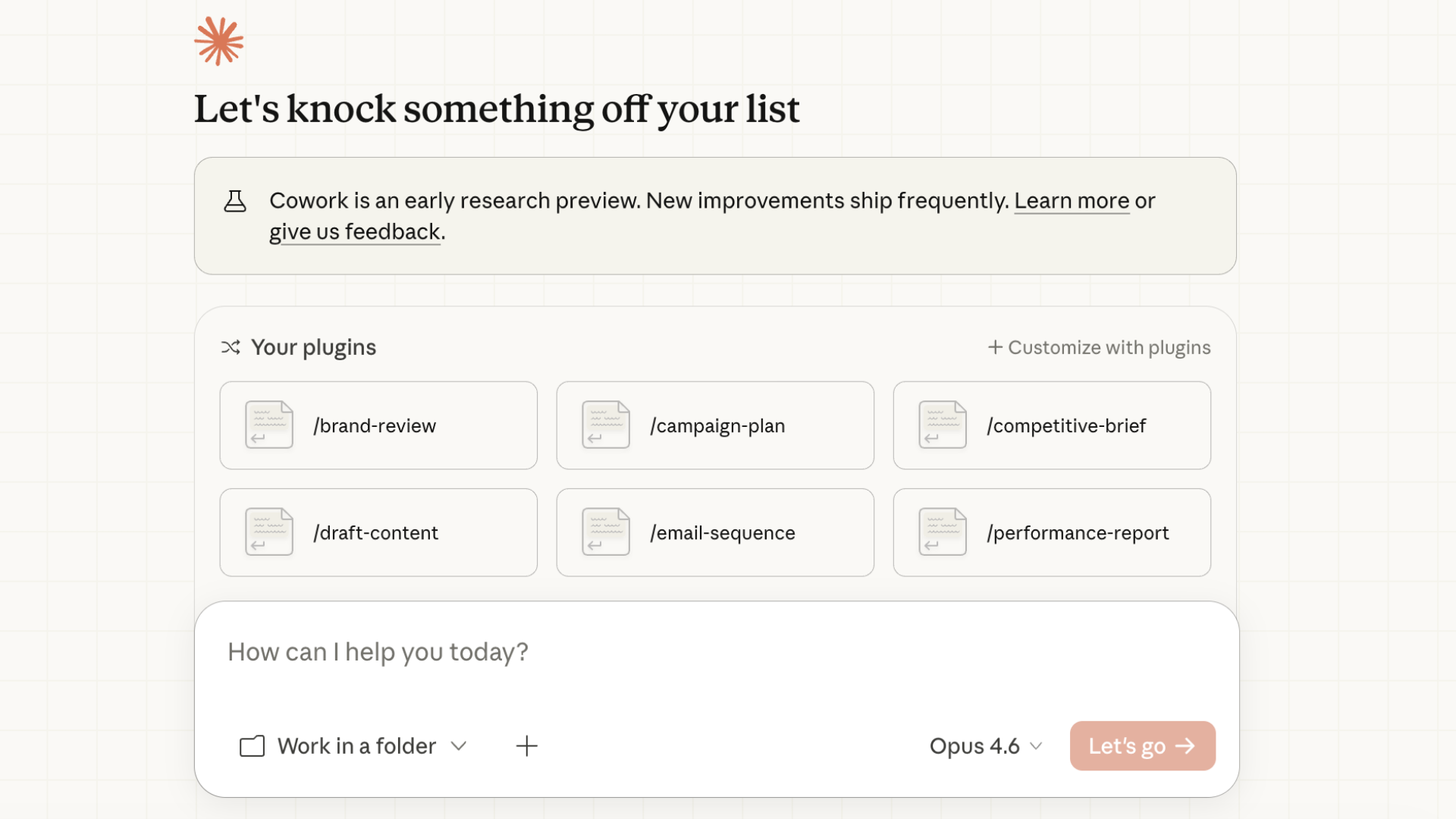
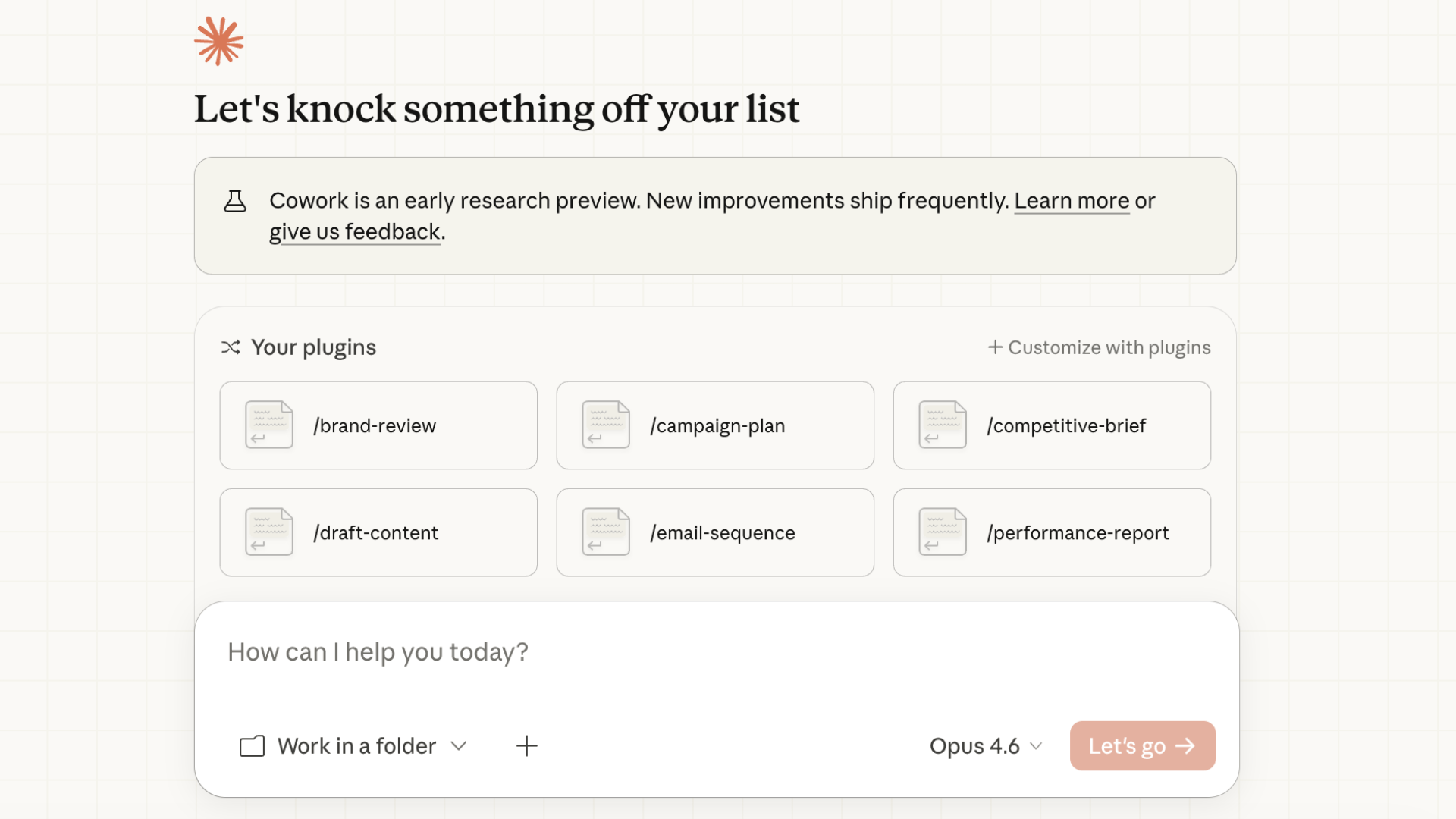
What is Cowork?
Cowork is Anthropic's agentic tool for knowledge workers — think Claude Code, but for non-developers.
It runs in a lightweight Linux VM on your computer, giving Claude the ability to:
- Create and edit documents (Word, Excel, PowerPoint, PDF)
- Browse the web and research topics
- Execute code and scripts
- Connect to external tools via MCP (Model Context Protocol)
Available on: Pro and Max plans
What Are Plugins?
Plugins are pre-built bundles that give Cowork superpowers in specific domains.
Each plugin includes:
Component | What It Does |
|---|---|
Skills | Domain expertise and workflows |
Slash Commands | Quick actions (e.g., |
MCP Connectors | Connect to external tools (CRM, databases, etc.) |
Sub-agents | Specialized AI workers for specific tasks |
Result: Instead of prompting from scratch, you get instant expertise.
The 11 Official Plugins
Anthropic released these open-source plugins on GitHub:
Plugin | Use Case | Key Skills |
|---|---|---|
Productivity | Task management, memory |
|
Enterprise Search | Search across all sources | Multi-source queries, knowledge synthesis |
Sales | Pipeline, outreach, research |
|
Finance | Close, reconciliation, analysis |
|
Legal | Contracts, NDAs, compliance |
|
Marketing | Campaigns, content, SEO |
|
Product Management | Specs, roadmaps, research |
|
Data | Analysis, visualization | Data insights, trend identification |
Customer Support | Ticket handling, responses | Response templates, escalation |
Biology Research | Scientific workflows | Research synthesis, literature review |
How to Enable Plugins
Step 1: Access Cowork
- Open Claude.ai (Pro or Max plan required)
- Click the Cowork button (bottom left)
- Wait for the VM to initialize
Step 2: Select a Folder
When prompted, select a folder on your computer. This becomes your workspace where:
- Claude can read/write files
- Outputs are saved
- Context files live
Step 3: Browse Available Plugins
Plugins appear in the skills list. Check available skills by asking:
What skills do you have available?Or look for the / slash command menu.
Step 4: Use Slash Commands
Each plugin comes with slash commands. Examples:
/campaign-plan          → Generate a full marketing campaign
/review-contract        → Analyze a contract against your playbook
/write-spec             → Create a PRD from a feature idea
/draft-outreach         → Research prospect + draft personalized email
/journal-entry          → Prepare month-end journal entries
Setting Up Your Personal OS
The most powerful Cowork setup combines plugins with a Personal Operating System — a folder structure that gives Claude persistent memory.
Recommended Folder Structure
Claude/
├── CLAUDE.md           ← Attach this to start each session
├── Context/
│   ├── profile.md      ← Your preferences, goals, work style
│   └── projects.md     ← Active projects and status
├── Inbox/              ← Drop files for Claude to process
├── Outbox/
│   └── Daily/          ← Daily briefings saved here
├── Logs/               ← Session logs
└── schedule.md         ← Weekly/monthly recurring tasks
The CLAUDE.md File
This is your "brain file" — attach it to every session. It tells Claude:
- Who you are and how you work
- Your active projects and priorities
- How to run your morning routine
- Where to find/save files
Pro tip: Start each day with "Let's start our day" and Claude will:
- Read your context files
- Ask what would make today a win
- Review your todo list
- Fetch relevant stats (YouTube, LinkedIn, etc.)
- Create a daily briefing
Plugin Deep Dives
Marketing Plugin
Best for: Campaign planning, content creation, SEO, brand consistency
Key commands:
Command | What It Does |
|---|---|
| Full campaign brief with objectives, channels, calendar |
| Blog posts, social media, emails, landing pages |
| Keyword research, on-page analysis, content gaps |
| Check content against your style guide |
| Competitor positioning and messaging comparison |
Example workflow:
/campaign-plan for a product launch targeting enterprise CTOs,
$50K budget, 6-week timeline
Sales Plugin
Best for: Pipeline management, call prep, prospecting, competitive intel
Key commands:
Command | What It Does |
|---|---|
| Analyze deals, flag risks, prioritize actions |
| Account context, attendee research, agenda |
| Research prospect + personalized email |
| Weighted forecast with best/likely/worst scenarios |
| Build battlecards for competitors |
Example workflow:
/call-prep for my meeting with Acme Corp tomorrow —
they're evaluating our enterprise plan
Finance Plugin
Best for: Month-end close, reconciliation, variance analysis, SOX compliance
Key commands:
Command | What It Does |
|---|---|
| Prepare entries with debits, credits, documentation |
| GL to subledger, bank, third-party balances |
| Decompose variances with narrative explanations |
| Generate P&L with period-over-period comparison |
| Sample selection, workpapers, control assessments |
Example workflow:
/variance-analysis for Q4 marketing spend —
we're $200K over budget and I need to explain why
Legal Plugin
Best for: Contract review, NDA triage, compliance, risk assessment
Key commands:
Command | What It Does |
|---|---|
| Flag deviations from your negotiation playbook |
| Classify as GREEN/YELLOW/RED for review priority |
| GDPR, CCPA, DPA review, data subject requests |
| Severity-by-likelihood framework |
| Generate templated responses to common inquiries |
Example workflow:
/triage-nda — attached is a new NDA from a vendor,
tell me if this needs full counsel review
Product Management Plugin
Best for: PRDs, roadmaps, user research synthesis, stakeholder updates
Key commands:
Command | What It Does |
|---|---|
| Full PRD from a feature idea |
| Reprioritize using RICE, MoSCoW, or ICE |
| Turn interview notes into structured insights |
| Tailored updates for execs, eng, or customers |
| Feature comparison and positioning analysis |
Example workflow:
/write-spec for a user notification preferences feature —
users are complaining about too many emails
MCP Connectors
Plugins connect to external tools via Model Context Protocol (MCP).
Available Connectors
Connector | What It Connects |
|---|---|
Slack | Read/send messages, search channels |
Notion | Read/write pages and databases |
Google Analytics | Pull traffic and conversion data |
Facebook Ads | Campaign insights, ad library search |
n8n | Execute automation workflows |
GitHub | Issues, PRs, code search |
Salesforce | CRM data, pipeline |
HubSpot | Contacts, deals, marketing |
Setting Up Connectors
- Ask Claude: "What connectors are available?"
- For missing connectors, use: "Search for [tool name] connector"
- Follow the OAuth flow to authenticate
- Connector becomes available in your session
Power User Tips
1. Stack Plugins for Complex Workflows
Example: Launching a product
1. /write-spec → Define the feature
2. /campaign-plan → Plan the launch
3. /draft-content → Create launch content
4. /draft-outreach → Prepare sales enablement
2. Use Context Files for Memory
Claude doesn't remember between sessions. Keep critical info in:
profile.md— Your preferences and goalsprojects.md— Active work and status- Domain-specific files — Playbooks, templates, guidelines
3. Create Custom Slash Commands
Use the /create-shortcut command to build your own:
/create-shortcut "weekly-report" that generates a marketing
performance summary using Google Analytics data
4. Batch Similar Tasks
Instead of one-off requests, batch work:
Review these 5 contracts and create a summary table
showing risk level, key deviations, and recommended actions
5. Let Claude Work Autonomously
For complex tasks, give Claude permission to work through multiple steps:
Research our top 3 competitors, create battlecards for each,
and save them to the Outbox folder. Work through this autonomously.
Troubleshooting
"Plugin not found"
→ Check if plugin is enabled in your plan settings
"Connector not authenticated"
→ Re-authenticate the MCP connector
"File not saved"
→ Make sure you've selected a workspace folder
"Context lost between sessions"
→ Attach your CLAUDE.md file at the start of each session
Resources
Quick Start Checklist
- Upgrade to Pro or Max plan
- Open Cowork from Claude.ai
- Select a workspace folder
- Create your Personal OS folder structure
- Write your CLAUDE.md file
- Try a slash command (
/draft-content) - Connect an MCP source (Slack, Notion, etc.)
- Run your first morning routine
Guide created by Rananjay Raj — Marketing Automation Specialist Follow for more AI workflow breakdowns