What is Claude Cowork?
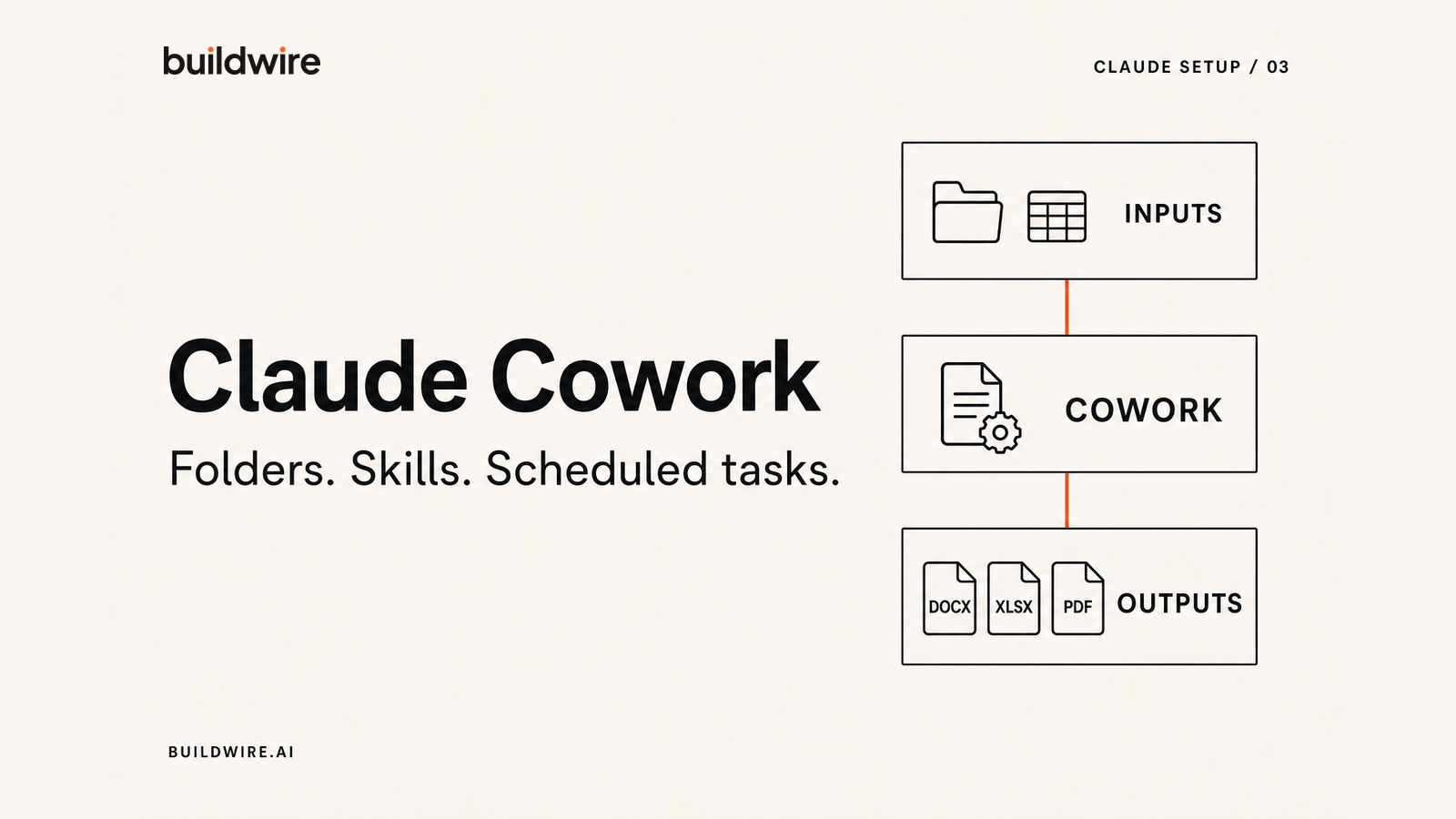
Claude Cowork is an agentic mode inside the Claude desktop app that can read, create, and edit files in a folder you give it access to. It was built so that people who are not developers get the same autonomous task execution that developers get from Claude Code, without touching a terminal.
Cowork launched on macOS in January 2026, came to Windows in February, and began rolling out to web and mobile in beta in July 2026. It is included on every paid Claude plan: Pro, Max, Team, and Enterprise. It is not on the Free plan.
The difference from Claude Chat is where the work ends. In Chat, you get text back and then do the assembly yourself. In Cowork, the finished file is saved in your folder.
| Task | In Chat | In Cowork |
|---|---|---|
| Summarise 40 transcripts | Upload in batches, copy each answer out, assemble by hand | Point at the folder, get one document back |
| Build a report | Copy text into Word, fix formatting | A formatted .docx appears in the folder |
| Clean up 300 files | Not possible | Renamed and sorted into subfolders |
Claude Cowork pricing: which plans include it?
Claude Cowork is included with every paid Claude plan: Pro, Max, Team, and Enterprise. It is not included on the Free plan.
There is no separate Cowork add-on to buy. Access follows your Claude plan, and usage comes from that plan's limits. Plan names, prices, and allowances can change, so check Anthropic's current pricing page before choosing one. For most individuals trying Cowork, Pro is the starting point. Team and Enterprise add organisation controls rather than a different Cowork product.
How to use Claude Cowork on Mac and Windows
The full local-folder experience lives in the Claude desktop app for macOS and Windows. Install the app, sign in with a paid account, open Cowork, and grant access to one dedicated working folder. Web and mobile access may be available in beta, but local file access depends on the desktop app.
The workflow is the same on both operating systems. The important choice is the folder you grant, not the computer you use. Keep that folder narrow, separate inputs from outputs, and avoid giving Cowork access to your whole drive.
How to use Claude Cowork: six-step setup
Install the desktop app and open Cowork
Download the Claude desktop app for macOS or Windows and sign in with the account on your paid plan. Cowork appears as its own space in the app. Web and mobile access is rolling out in beta, but the desktop app remains the full experience because that is where local file access lives.
Grant access to one specific folder
Cowork asks which folder it may work in. Do not point it at your entire home directory. Create a dedicated folder and give it that.
Two reasons. Security is the obvious one. The less obvious and more practical one is quality: a tight folder means less irrelevant material to wade through, and better output.
Structure the folder before you use it
This is the step people skip, and it is the one that decides whether Cowork feels reliable. A structure that works:
ClaudeWork/
├── _context/          Brand guide, ICP, tone examples, past work
├── _templates/        Blank report, deck, and doc formats to copy
├── inputs/            Raw material you drop in: transcripts, exports
├── outputs/           Where finished files get saved
└── INSTRUCTIONS.md    Standing rules for this folder
The leading character keeps reference folders sorted at the top. The split between inputs and outputs matters more than it looks: it means you can say "read everything in inputs and write the result to outputs" and never worry about Claude overwriting a source file.
Write INSTRUCTIONS.md
Put a standing instructions file in the folder root and tell Claude to read it at the start of a session. The template is below.
Connect the services you actually use
Cowork supports connectors for external services such as Google Drive and Slack through MCP, and pairs with the Claude in Chrome extension for tasks that involve clicking through a website.
Worth being accurate here: Cowork has web search built in, so you do not need a connector for ordinary research. Connectors are for reaching into specific systems, and the browser extension is for interacting with web interfaces.
Record your first Skill
Since July 2026, Cowork has Record a Skill. You record yourself doing a task, narrating what you are doing, and Claude turns that recording into a reusable Skill you can review before saving. Recordings cap at around ten minutes, and the feature is on desktop for Pro, Max, and Team plans.
Record the task you do every week and resent doing. That is where it pays back fastest.
The Cowork instructions template
Save this as INSTRUCTIONS.md in your working folder and open a session with "Read INSTRUCTIONS.md before starting." Edit the bracketed parts.
# Working folder instructions

## Who I am
[Name], [role] at [company]. [One line on what the company does.]
Audience for most outputs: [who reads this work].

## Folder map
- _context/    Reference material. Read before writing anything.
- _templates/  Formats to copy. Never edit these in place.
- inputs/      Source material. Treat as read-only.
- outputs/     Everything you create goes here.

## Standing rules
1. Never edit or delete anything in inputs/ or _templates/.
   Copy, then work on the copy.
2. Save all new files to outputs/ using the naming pattern
   YYYY-MM-DD-short-description.ext
3. Before a long task, tell me your plan in three or four lines
   and wait for me to confirm.
4. If source material is contradictory or missing, stop and ask.
   Do not fill the gap with an assumption.
5. When you finish, list what you created and flag anything you
   were unsure about.

## Output standards
- Documents: [.docx / .xlsx / .pptx / PDF as appropriate]
- Voice: match the examples in _context/. Those set the standard.
- Never use these words: [your banned list]
- No em dashes. Use hyphens, colons, or full stops.
- [Any formatting rule specific to your business]

## Recurring jobs
- [Job name]: read [input], produce [output], following [template].
- [Job name]: ...
Rules 3 and 4 are the ones that matter. Agentic tools fail expensively when they guess, because they guess confidently and then act on it for twenty minutes. Making Claude state a plan and stop when it is uncertain turns a risky process into a predictable one.
Claude Cowork scheduled tasks: the one limit to know
Cowork can run tasks on a schedule, with hourly, daily, weekly, and weekday cadences set directly in the app. There is one real constraint: scheduled tasks run against your connected accounts and cloud files, not a folder on your local machine. Anything that depends on local files has to run while you are there.
This distinction catches people out. A Monday report built from Google Drive and Slack can run on its own. The same report built from a folder on your laptop cannot, because your laptop might be shut.
Design around it: put anything you want automated into a connected cloud service, and keep local folders for work you run interactively.
Three workflows that pay for the subscription
1. The many-files summary
Drop every call transcript, survey export, or support ticket from the month into inputs. Ask for the recurring themes with direct quotes as evidence, written to a document in outputs. This is hours of reading, done while you make coffee, and it is the single best first task to try.
2. The reconciliation
Two spreadsheets that should agree and do not: an ad platform export against your internal numbers, a CRM list against a billing list. Ask Cowork to compare them, produce a sheet of mismatches, and describe the likely cause of each pattern. It reads .xlsx and writes .xlsx, so nothing leaves the format you work in.
3. The recurring deliverable
Anything you rebuild on the same day every week. Put the format in _templates, the data source in a connected service, and set it as a scheduled task. This is the workflow that made us stop rebuilding the same reports by hand.
We build this work into marketing systems
Tell us the repetitive marketing work eating your week. We will map the system and tell you what is worth building.
Book a callFrequently asked questions
What is the difference between Claude Cowork and Claude Code?
Claude Cowork is for people who are not developers. It works with everyday files such as documents, spreadsheets, and PDFs through the Claude desktop app. Claude Code is a command-line tool for developers that works inside a codebase, writing and editing code and running tests. Both let Claude act on your files, but they target different users and different work.
Do I need to know how to code to use Claude Cowork?
No. Cowork was built specifically for non-developers. There is no terminal, no command syntax, and no installation beyond the Claude desktop app. You describe what you want in plain language, and Claude works through the steps in the folder you granted.
How much does Claude Cowork cost?
Cowork has no separate add-on price. It is included with paid Claude plans: Pro, Max, Team, and Enterprise. It is not included on the Free plan. Check Anthropic's current pricing page because prices and usage limits can change.
Which plans include Claude Cowork?
Cowork is included on all paid Claude plans: Pro, Max, Team, and Enterprise. It is not available on the Free plan. It launched on macOS in January 2026, added Windows in February 2026, and started a web and mobile beta in July 2026.
Can Claude Cowork create Google Docs?
No. Cowork creates native Microsoft Office and PDF files: .docx, .xlsx, .pptx, and .pdf. You can save those files to Google Drive using a connector, but Claude does not author in Google Docs format.
Can Claude Cowork run tasks automatically on a schedule?
Yes. Scheduled recurring tasks are a built-in feature with hourly, daily, weekly, and weekday options. The important limit is that scheduled tasks run against connected accounts and cloud files rather than local folders, so anything depending on files on your own machine has to run interactively.
What is Record a Skill in Claude Cowork?
Record a Skill, released in July 2026, lets you record your screen and narration while performing a task, roughly ten minutes maximum. Claude converts the recording into a reusable Skill that you review before saving. It is available on desktop for Pro, Max, and Team plans.
Is Claude Cowork safe to give folder access to?
Access is scoped to the folder you choose, so the practical safeguard is choosing a narrow one rather than your whole drive. A dedicated working folder with separate input and output subfolders, plus a standing rule never to modify source files in place, keeps the blast radius small and improves output quality at the same time.
What file types can Claude Cowork read?
A wide range, including .docx, .xlsx, .pptx, .pdf, .csv, .txt, .md, .html, .json, images, and code files. In practice most everyday business documents and data exports are readable.
Last reviewed 31 July 2026 against Anthropic's published documentation.